
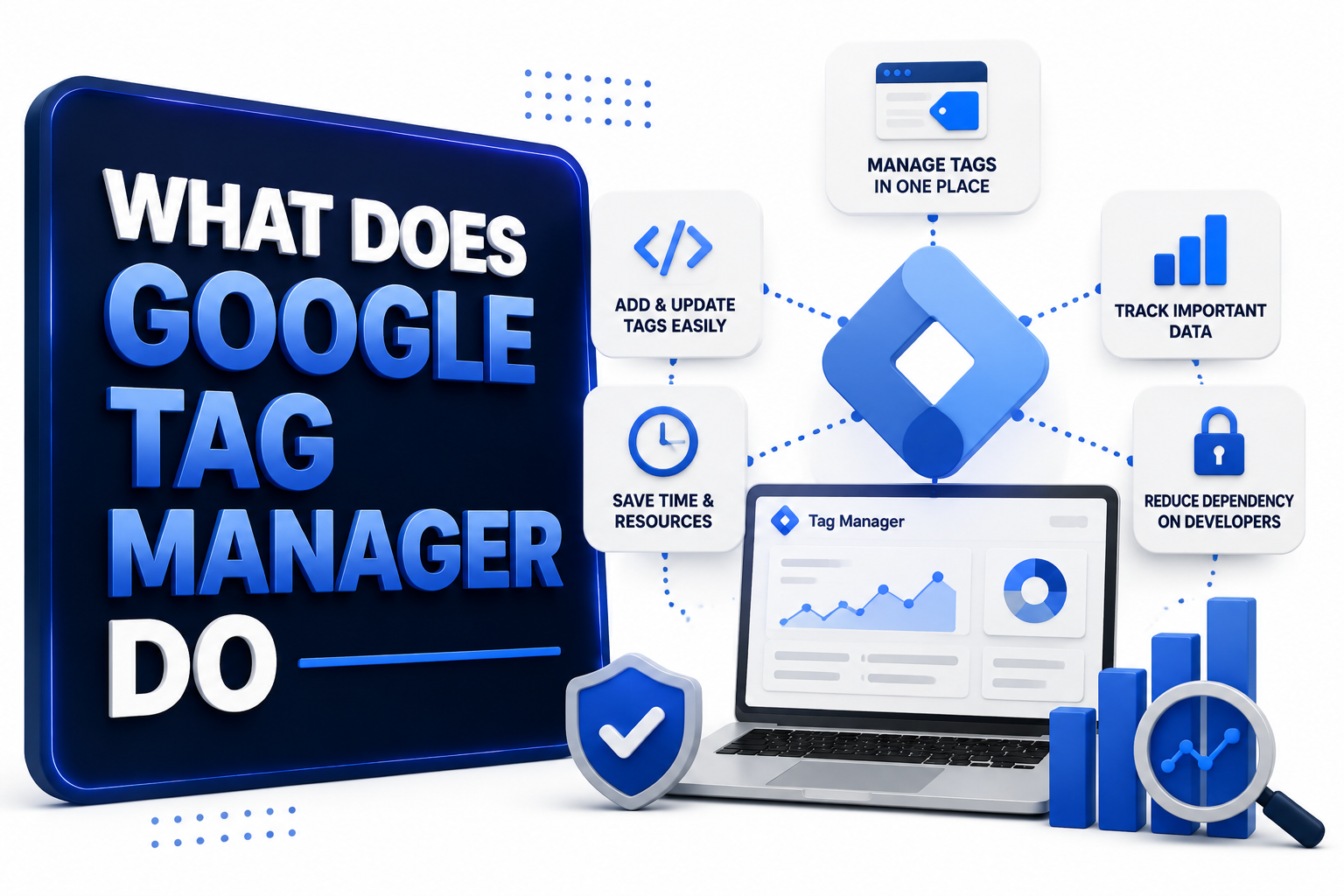
Modern websites rely on several measurement and advertising tools, yet each platform often requires its own tracking code. Google Tag Manager gives teams one organized place to manage those codes, reducing repeated website edits and making tracking configurations easier to review.
The platform does not replace Google Analytics, advertising platforms, or customer data tools. Instead, it controls when their tags load and what information those tags receive. This separation helps marketers manage measurement while developers retain oversight of the website’s primary codebase.
Understanding what does Google Tag Manager do begins with one simple idea: it acts as a control center for tracking instructions. Once its container code is installed, teams can configure many measurement changes through the Tag Manager interface rather than editing every page manually.
The Core Purpose of Google Tag Manager
Google Tag Manager helps website owners add, organize, test, and update tracking tags from a central workspace. A tag may send page views to analytics, record advertising conversions, track form submissions, or connect a website with another approved marketing platform.
Instead of placing separate scripts throughout a website, teams place a Tag Manager container on the site. That container holds the configured tags, triggers, variables, and related settings. Google describes this complete collection of tracking configurations as a website or application container.
This setup creates a cleaner workflow between marketing and development teams. Marketers can prepare tracking configurations, while developers can review complex requirements, data-layer changes, and security concerns. The result is not developer-free tracking, but a more structured method for managing it.
A Quick View of What GTM Handles
- Deploys supported analytics, advertising, remarketing, and custom tracking tags.
- Fires tags after page views, clicks, form submissions, purchases, or custom events.
- Uses variables to insert changing values such as page URLs, product IDs, or revenue.
- Provides preview tools for checking behavior before publishing a container version.
- Supports consent-aware configurations and advanced server-side tagging workflows.
The Building Blocks Behind Tag Management
Google Tag Manager works through several connected components rather than one tracking script. Tags send information, triggers determine when actions occur, variables provide changing values, and the data layer passes structured website information into the container for consistent measurement and reporting.
These components allow a single container to support simple and advanced tracking. A small website may record contact-form submissions, while an online store may pass product names, prices, transaction identifiers, coupon details, and customer journey events through carefully planned configurations.
The value comes from coordination. A tag without the correct trigger may fire at the wrong time, while a trigger without reliable variables may target the wrong interaction. A clear naming system and documented measurement plan keep these components understandable as the container grows.
Tags as the Delivery Mechanism
A tag is a configuration that sends information to a destination or performs a defined tracking action. Common examples include Google Analytics event tags, Google Ads conversion tags, remarketing tags, Floodlight tags, and approved third-party templates used for other marketing services.
Tags usually need identifiers and event details before they can work. An analytics tag may require a measurement ID, while a conversion tag may use a conversion label, transaction value, and currency. Variables can supply these changing values dynamically during each visitor session.
Google Tag Manager includes native tag templates, a Community Template Gallery, and custom template options. Community templates come from third-party developers, so teams benefit from reviewing permissions, documentation, maintenance history, and vendor credibility before adding them to a production container.
Triggers as the Timing Rules
Triggers tell Google Tag Manager when a tag may fire during a website interaction. They can respond to page views, link clicks, button clicks, form submissions, timer events, element visibility, history changes, YouTube interactions, custom events, and other detectable activity.
A trigger may apply everywhere or only when selected conditions match. For example, a purchase tag can fire when a custom purchase event appears, while a phone-call click tag can fire only when a clicked URL begins with the telephone protocol.
Every active tag needs a trigger because the trigger connects the tracking action with visitor behavior. Google explains that triggers listen for events and allow associated tags to fire when their conditions match. Careful trigger conditions reduce duplicate, accidental, or irrelevant data.
Variables and the Data Layer
Variables are reusable placeholders that hold values needed by tags and triggers. They can contain page locations, click text, form identifiers, transaction totals, product details, campaign information, consent states, or other values available during a visitor’s interaction with the website.
Built-in variables cover many common browser and interaction details. User-defined variables support lookup tables, constants, regular expressions, cookies, data-layer values, and custom logic. Variables can define trigger filters and provide changing values to tags during individual website events.
The data layer is a structured JavaScript object used to pass business information from the website into Tag Manager. A planned data layer creates consistent naming and reduces dependence on visible page elements, which may change whenever designers update layouts, text, or buttons.
Measurement Planning Before Configuration
- List the business questions the website needs to answer.
- Define meaningful events, parameters, and conversion actions.
- Decide which values belong in the website data layer.
- Create consistent names for tags, triggers, and variables.
- Assign ownership for testing, approval, publishing, and documentation.
Tracking Visitor Actions Across a Website
Google Tag Manager can track actions that basic page-view measurement may miss. These actions include navigation clicks, file downloads, outbound links, video engagement, account registrations, quote requests, newsletter signups, product selections, checkout steps, and successfully completed online purchases.
The platform does not automatically understand which interactions matter to a business. A team first defines meaningful actions and then configures the related tags and triggers. This planning prevents containers from collecting large amounts of activity that provide little analytical or commercial value.
Reliable tracking also depends on the website itself. Some forms submit without a traditional page reload, while applications may change content dynamically. Custom events or data-layer pushes often provide more dependable signals than triggers based only on visible text, classes, or page structure.
Managing Analytics and Advertising Tags
Many teams use Google Tag Manager to deploy Google Analytics 4 events and advertising conversion tags. The container can coordinate page-level measurement, campaign attribution support, remarketing configurations, ecommerce events, and conversion details without scattering unrelated scripts across multiple website templates.
GTM can also manage tags from supported third-party platforms through templates or approved custom implementations. This makes the container useful as a shared tracking workspace, although each vendor still controls how its platform receives, processes, stores, and reports submitted information.
For readers building a broader measurement system, connect this section with a Google Analytics setup guide. That internal resource can explain property configuration, event reporting, conversions, audiences, and reports, while this article remains focused on tag deployment and management.
Common Marketing Uses for GTM
- Record lead-form submissions as analytics events and advertising conversions.
- Track purchases with transaction identifiers, values, items, and currencies.
- Measure clicks on phone numbers, email links, downloads, and outbound links.
- Deploy remarketing tags under appropriate consent conditions.
- Send selected events to multiple approved measurement destinations.
Supporting Conversion Tracking
Conversion tracking connects website actions with meaningful marketing outcomes. Google Tag Manager can send a conversion signal after a visitor buys a product, submits a qualified lead form, books an appointment, creates an account, or completes another defined business action.
A reliable conversion setup includes clear event conditions and useful parameters. Revenue, currency, transaction identifiers, product categories, lead types, and form locations can help reporting systems distinguish one conversion from another and reduce ambiguity when teams review campaign performance.
Duplicate conversions are a common tracking risk. A confirmation page may reload, a purchase event may appear twice, or two overlapping triggers may fire together. Preview testing, unique transaction identifiers, and platform-specific validation help teams identify these problems before relying on reports.
Connecting Google Tag Manager With Google Analytics
Google Analytics and Google Tag Manager serve different roles. Analytics receives, processes, and reports measurement data, while Tag Manager manages configurations that send selected information. A website can use Analytics without GTM, and GTM can deploy tags for platforms beyond Google Analytics.
This distinction explains why removing an analytics tag from a container stops new information from being sent but does not erase historical reports. Similarly, changing an event name in GTM affects future collection, while existing analytics data generally remains under its previous structure.
A coordinated setup uses the same measurement plan across both platforms. Event names, parameters, conversions, audiences, and reporting expectations benefit from shared documentation. A conversion tracking guide can provide additional context for mapping marketing goals to measurable website actions.
Tag Manager and Analytics Compared
| Area | Google Tag Manager | Google Analytics |
|---|---|---|
| Main role | Manages and deploys tracking configurations | Processes and reports collected data |
| Core elements | Tags, triggers, variables, data layer | Events, parameters, conversions, audiences, reports |
| Typical users | Marketers, analysts, developers, agencies | Marketers, analysts, and business owners |
| Publishing | Container versions are published | Data appears after collection and processing |
| Data analysis | Limited to testing and diagnostics | Designed for analysis and reporting |
Reducing Repeated Website Code Changes
Without a tag management system, every new tracking request may involve editing templates, publishing website code, and coordinating a development release. Google Tag Manager moves many configuration changes into a dedicated workflow following the initial container and data-layer implementation process.
This approach can shorten routine measurement updates, particularly when a supported template already exists. Teams can adjust identifiers, triggers, or event parameters in the workspace, test the proposed version, and publish the approved configuration without modifying unrelated website features or content.
GTM does not remove the need for developers. Complex ecommerce data, single-page applications, consent platforms, security policies, and custom integrations often require technical support. Developers also help keep data-layer structures stable when the website design or application architecture changes significantly.
Testing Changes Before Publication
Google Tag Manager includes preview and debugging tools that show which tags fired, which tags did not fire, what events occurred, and which variables were available. This visibility helps teams investigate tracking conditions before a new container version reaches regular website visitors.
Testing usually covers several user paths rather than one successful interaction. A form tag may need checks for valid submissions, validation errors, repeated submissions, mobile layouts, embedded forms, and confirmation messages. Ecommerce testing may cover products, discounts, currencies, refunds, and payment outcomes.
After browser-level testing, teams can validate incoming events inside destination platforms. Tag Assistant, analytics debugging reports, advertising diagnostics, and network inspection provide different views of the same implementation. Agreement across these views creates greater confidence in the collected measurement data.
A Practical Pre-Publish Checklist
- Confirm that the correct container and environment are open.
- Test expected interactions on desktop and mobile layouts.
- Check both firing and non-firing trigger conditions.
- Review event names, parameters, identifiers, values, and currencies.
- Inspect consent behavior before and after a visitor’s selection.
- Add a descriptive version name and change summary before publishing.
Version Control and Team Collaboration
Each published Google Tag Manager container creates a version that records its configuration at that point. Version history supports review, comparison, and rollback when a release causes unexpected behavior. Clear version names make this history more useful during future troubleshooting and audits.
Workspaces help multiple contributors prepare changes without placing every unfinished edit in one shared area. Teams can separate an advertising update from an analytics project, compare proposed changes, resolve conflicts, and combine approved configurations through a more organized measurement release process.
Access permissions also support governance. Organizations can decide who may view, edit, approve, or publish container changes. This separation is valuable for agencies, internal teams, and regulated businesses where measurement updates need review before becoming active on the public website.
Supporting Consent-Aware Tag Behavior
Google Tag Manager can help coordinate how tags behave after a visitor expresses privacy choices through a consent banner or consent management platform. Consent settings can determine whether selected tags load, remain blocked, or adjust their behavior according to recorded consent states.
Google’s consent mode communicates consent status to Google tags, allowing those tags to adjust their behavior. It does not create the consent banner itself. Instead, it works with a banner or consent platform that collects the visitor’s choice and passes appropriate signals.
A sound privacy setup involves more than adding a consent template. Teams need accurate regional rules, clear categories, correct default states, timely updates, documented vendors, and testing across acceptance, rejection, and partial choices. Legal guidance may be appropriate for organization-specific compliance decisions.
Consent Configuration Areas to Review
| Area | Review Focus |
|---|---|
| Default state | Tag behavior before the visitor chooses |
| Updated state | Signals sent after acceptance or rejection |
| Tag checks | Built-in and additional consent requirements |
| Regional behavior | Rules applied to relevant visitor locations |
| Verification | Tests for full, partial, and denied consent |
Considering Website Performance
Google Tag Manager can simplify script management, but it does not make every tag lightweight. Each marketing or analytics script may add network requests, processing work, cookies, or third-party dependencies. A crowded container can still contribute to slower website experiences.
Performance improves when teams remove unused tags, narrow firing conditions, avoid unnecessary custom code, and review vendor scripts before deployment. Tags that load on every page deserve particular attention because even small delays can affect many sessions across a high-traffic website.
The container itself is only part of the performance picture. Tag sequencing, consent timing, browser execution, third-party servers, and page architecture all influence results. Performance testing before and after major tag releases helps teams identify whether measurement changes affected user experience.
Extending Tracking With Server-Side Tagging
Server-side Google Tag Manager moves part of the measurement workflow from the visitor’s browser to a server container. Website or application data reaches that controlled environment, where it can be processed and then forwarded to approved analytics, advertising, or other destination platforms.
Google describes server-side tagging as a model that can improve page performance and provide greater control over data before it reaches vendors. Server containers use familiar tags, triggers, and variables, but they introduce hosting, routing, validation, security, and maintenance responsibilities.
This approach is not a simple switch for every website. It usually involves cloud infrastructure, a custom tagging domain, client and tag configuration, monitoring, and ongoing costs. Organizations gain more value when they have defined privacy, performance, or data-governance goals.
Client-Side and Server-Side Tagging
- Client-side tags execute mainly in the visitor’s browser.
- Server-side setups route selected measurement data through a controlled endpoint.
- Server containers can transform, validate, enrich, or remove selected fields.
- Hosting and maintenance become part of the measurement program.
- Consent obligations still apply throughout the complete data flow.
Common Google Tag Manager Mistakes
One frequent mistake is publishing tags without a written measurement plan. The container then grows around individual requests, producing inconsistent names, duplicate events, unclear variables, and overlapping triggers. Regular audits help teams remove obsolete configurations and restore a coherent tracking structure.
Another mistake is relying on fragile click text or CSS selectors when a stable data-layer event would work better. Visual elements often change during redesigns, translations, or experiments. Tracking based on business events generally survives those changes more reliably than presentation-based conditions.
Teams also create risk when too many people can publish, custom code receives limited review, or container changes lack documentation. Permission controls, template reviews, test cases, and descriptive version notes create accountability without making every routine measurement update unnecessarily slow.
Choosing When Google Tag Manager Fits
Google Tag Manager fits websites that use several measurement or advertising tools, update tracking regularly, or need clearer collaboration between marketers and developers. It is also useful when a company wants repeatable testing, version history, structured naming, and centralized tag governance.
A very small website with one stable analytics script may not gain much from a complex container. The decision depends on tracking volume, team skills, compliance needs, website architecture, and expected business growth rather than the total number of published pages.
Organizations also need someone responsible for container quality. GTM is approachable, yet inaccurate configurations can produce misleading reports or expose unnecessary data. Ownership may sit with an analyst, marketer, developer, agency, or shared measurement team with clearly documented review responsibilities.
Signs That GTM May Be Appropriate
- Tracking updates occur several times throughout the year.
- Multiple teams or agencies manage measurement and advertising tags.
- The website records leads, purchases, registrations, or engagement events.
- Testing and version history are important for internal governance.
- A structured data layer supports business-specific information.
- Consent settings need coordination across several tracking tags.
A Practical Google Tag Manager Workflow
A useful workflow begins with business goals rather than tag creation. Teams define the decisions they want data to support, translate those needs into events and parameters, identify required consent conditions, and document which platforms will receive each selected data point.
Next, developers install the container and implement any required data-layer events. Analysts or marketers configure tags, triggers, and variables inside a workspace. The team then tests realistic visitor journeys, validates destination reports, reviews permissions, and documents the planned release.
After publication, monitoring continues across the measurement system. Teams compare event volumes, conversion totals, transaction values, and consent behavior against expected patterns. Scheduled audits can identify broken triggers, outdated vendor tags, unused variables, duplicate events, and gaps introduced by website changes.
Conclusion
Google Tag Manager provides a central system for managing how tracking and marketing tags operate across a website. It connects tags with triggers, variables, consent settings, and data-layer information so teams can control when information is sent and which values accompany it.
The platform supports analytics events, advertising conversions, remarketing, testing, version history, collaboration, and advanced server-side configurations. Its value depends on thoughtful planning, reliable website signals, controlled access, careful testing, and regular maintenance rather than the total number of installed tags.
In summary, what does google tag manager do is answered by its role as a structured deployment and governance layer for measurement technology. It does not analyze business performance itself, but it helps approved analytics and advertising tools receive cleaner, more intentional data.
FAQ’S
Is Google Tag Manager the same as Google Analytics?
No. Google Tag Manager manages and deploys tracking configurations, while Google Analytics receives, processes, and reports measurement data. GTM can send events to Analytics, but it can also manage tags for advertising and approved third-party platforms.
Does Google Tag Manager collect data by itself?
GTM primarily controls tags that send data to destination platforms. The container can read browser, page, interaction, consent, and data-layer values, but reporting and long-term analysis generally occur inside Google Analytics, advertising platforms, or other connected tools.
Can Google Tag Manager track button clicks?
Yes. GTM can detect clicks and fire a tag when defined conditions match, such as a button identifier, link URL, or click class. A custom data-layer event may provide more reliable tracking when website elements change frequently.
Does Google Tag Manager slow down a website?
The container adds code, while tags deployed through it may create additional requests and browser work. Performance depends on tag quantity, firing conditions, vendor scripts, and implementation quality. Regular audits and performance tests help control unnecessary impact.
Is Google Tag Manager free to use?
The standard Google Tag Manager product is available without a direct software fee. However, implementation, maintenance, consent tools, developer support, third-party services, and server-side hosting can create costs depending on the website’s measurement and governance requirements.
0 Comments